

Click-to-Call Dialer
Beta User’s Guide - Real Geeks CRM
A Note About Beta Testing
First off–THANK YOU! We appreciate your willingness to help us test new tools and provide your input. Please keep in mind that the feature you are previewing is still under active development. This means it is not yet fully complete and will continue to receive updates–in large part based on your feedback–up until its full release.
Beta Release Roadmap
We will continue making functionality updates for the Click-to-Call Dialer over this final week leading up to its general release on Tuesday, November 4. The following are planned to release by end of day, Thursday, October 30:
Visual re-styling of the options to save your preferred microphone and speaker
Auto-prompting for saving a next Follow-Up after completing a logged call
Feature Intro
The single best way to engage leads is by picking up the phone and calling them. This feature introduces the ability to do so through the Real Geeks CRM via a click-to-call VOIP solution. It enables agents to initiate calls directly from a lead record, take notes, and track outcomes. Use of this tool will strengthen overall lead engagement and improve productivity, while delivering on the core need for rapid, reliable communication that also provides agents and brokers better insight into call activity.
How do I use it?
You can make calls from the Lead Feed (aka Dashboard screen), the full Leads List table, and also individual lead Details pages. To start the dialer up, simply hit the “Call” button on any lead:
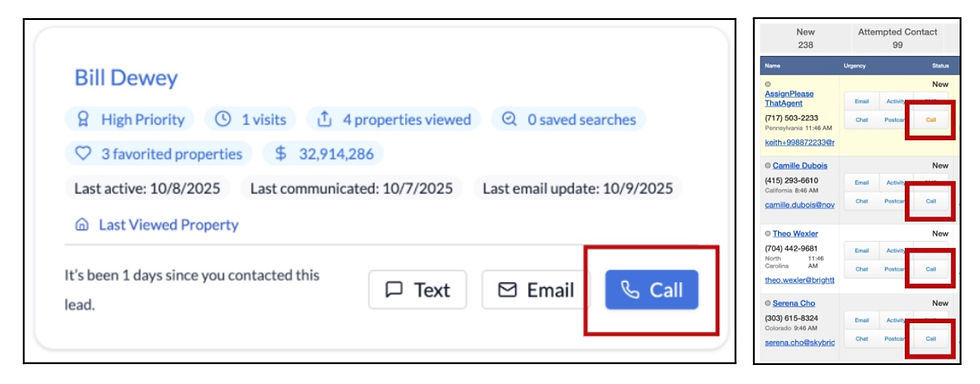
IMPORTANT Do NOT attempt to navigate to a different page while the dialer is active or else the call will be ended. You CAN, however, open a new tab in your browser without disrupting the call. We suggest opening the lead’s Details page in another tab if needed for reference by clicking the lead’s name on the Lead Feed card (BEFORE starting a call) or by clicking the lead’s name on the dialer window itself:

During and after the call, you can take notes and specify a call outcome. Once finished, be sure to hit the “Save & Log Call” button to record what you’ve written. These notes will appear with the new Call event on the lead’s Activity History.

Other Frequently Asked Questions
Do I need any extra software to use the dialer?
No. The Click-to-Call Dialer works directly inside the Real Geeks CRM using your existing texting number.
What number does the dialer use?
It uses your assigned Real Geeks number, the same one used for your CRM text messages.
Does this require any approval like texting?
Yes. You should complete the A2P 10DLC compliance process before using Click to Call.
How does this work with teams?
Multiple agents can use the dialer to place concurrent calls utilizing that same CRM Number. As long as the calls are not initiated within the exact same second, there will be no interference. If a lead attempts to call back to the CRM Number, that call will be routed to the assigned agent’s personal phone, as is the case with call-routing in the system today.
Can I still use my personal phone?
Yes, but calls made outside the CRM won’t log automatically. To keep everything tracked, call from the CRM.
Will my broker see my call activity?
Yes. Calls made and logged in the CRM appear in the lead’s activity history for broker visibility.
Will there be an extra cost for this feature?
No. The Click-to-Call Dialer will be included with your base Real Geeks subscription.
What if my call doesn’t connect or sounds a bit distorted?
The Dialer makes calls via your web browser. If your internet connection is poor or otherwise unstable, that can impact the quality of the call. Please also keep in mind that the recipient’s own cellular signal can also impact call quality. If you experience call quality issues, first check your internet connection and try again. If the problem continues, contact Real Geeks Support.
Can I move or minimize the Dialer to reference other lead info on the screen during my call?
Being able to minimize the Dialer is planned for a future update. In the meantime, we recommend clicking on the lead’s name to pull up that person’s Details page in another tab that you can use to reference their information while you talk to them.
How do I build call lists?
Building call lists is as easy as using the Advanced Filters on your Leads List. You can select any of your saved filter sets or else create a new one to focus on the lead segment you wish to call. From there, simply work your way down the list, hitting the “Call” button associated with each lead to begin the connection.
Can I powerdial or have the Dialer automatically move through my call list?
Automatic powerdialing is planned for a future update. In the meantime, we recommend you spend a bit of time between each call reviewing your next lead’s info in order to prep for whichever conversation you’re about to have with that person.
Can I close the Dialer without saving an activity?
Nope. Even if you don’t reach the person, you should still log the attempt. Even if you hit “Call” by mistake and immediately ended it, odds are the lead’s phone still registered a missed call, so you should record that so as to avoid being seen as a spammer for trying again too soon.
What if my audio preferences don’t seem to save?
Some web browsers store their own preferences that override in-app selections. If you experience any concerns with which mic or speaker the dialer is using, you can change the default permissions and preferences in your web browser’s settings, which should resolve any issue.

Comments